Difference Between Guest Browsing and InPrivate Browsing in Microsoft Edge
The new Chromium-based Microsoft Edge in Windows 10 is an excellent web browser. It's much more secure than Google Chrome, even though it's based on the same Chromium platform. For more information, check out my article Should You Replace Google Chrome with Microsoft Edge as Your Default Browser?
In this article, I will share some information about the two privacy features offered in Microsoft Edge:
Copyright © 2020 SeattlePro Enterprises, LLC. All rights reserved.
- Browsing as Guest
- InPrivate browsing
Browsing as Guest
In Windows 10, Microsoft Edge includes a privacy feature called Browse as Guest. To start browsing as a guest, click the profile icon in the top right corner of the Edge browser and select the option Browse as guest.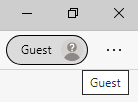
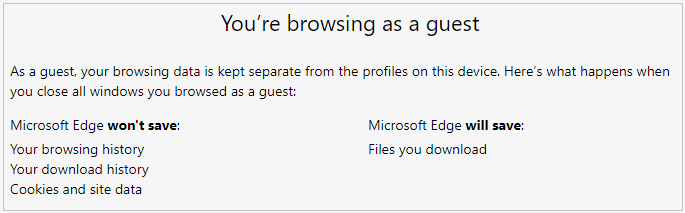
- Your browsing history
- Your download history
- Temporary Internet Files
- Cookies and site data
InPrivate Browsing
To use another privacy feature, you can open a new InPrivate window. This is called Incognito window in Google Chrome and Private window in Brave and Firefox. To open a new InPrivate window in Edge, click the ellipses (...) and select New InPrivate window. You can see in the upper right corner that you are browsing InPrivate.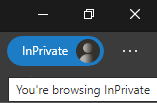
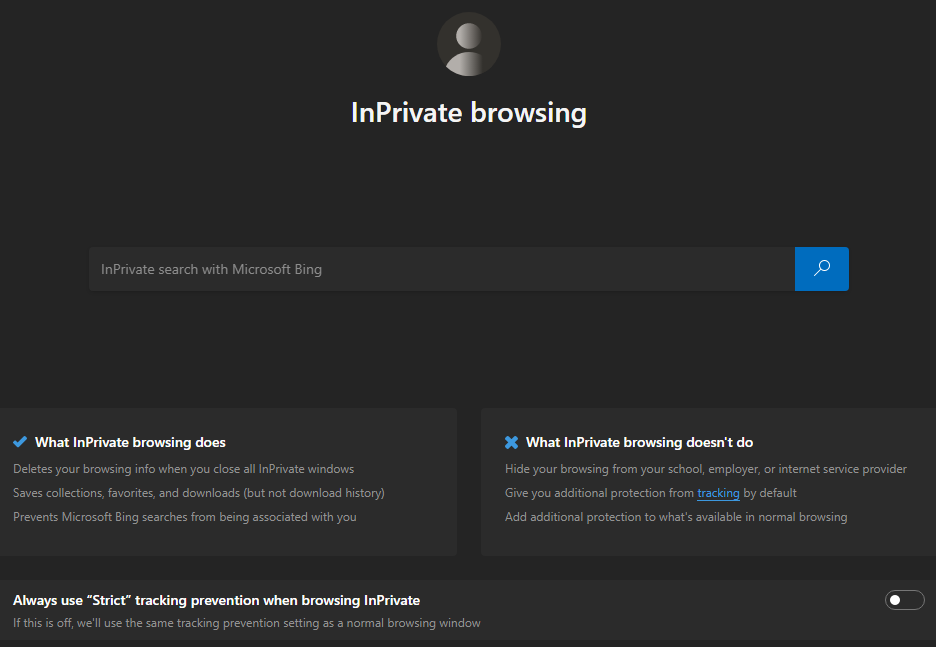
- Your browsing history
- Your download history
- Temporary Internet Files
- Cookies and site data
- Passwords
- Addresses
- Form data
- Guest browsing offers good privacy, but is not suitable for your normal day-to-day web browsing.
- InPrivate browsing is more convenient than Guest browsing. It's less restrictive and is suitable for daily web browsing in a business or personal environment.
- Guest browsing mode can be very useful when you visit a friend or relative. You can browse the web on their computer and close all the Guest windows when you are done, which would not "mess" with their profile at all. It's like you never used their web browser at all.
- Both of these privacy modes prevent Microsoft Bing searches from associated with you.
- You can use either one of them to sign in with your Microsoft account and use Microsoft 365, Outlook.com, etc. However, you can use extensions only InPrivate mode, not in Guest mode. Therefore, you won't be able to use your Password Manager in the Guest browsing mode.
- Although other people using your computer won't see your browsing history, neither InPrivate and Guest browsing will not hide your browsing history from your employer, school, or Internet Service Provider (ISP), such as Comcast, CenturyLink, Verizon, AT&T, etc.
- Because I believe the new Chromium-based Microsoft Edge is more secure than Google Chrome, rather than adding the restrictions associated with Guest browsing and InPrivate Browsing, I simply secure the new Microsoft Edge browser to achieve the same or better security and privacy offered by InPrivate and Guest browsing.
| Thanks for reading my article. If you are interested in IT consulting & training services, please reach out to me. Visit ZubairAlexander.com for information on my professional background. |
Copyright © 2020 SeattlePro Enterprises, LLC. All rights reserved.
Leave a Comment